
User Guide
Everything you need to get the most out of BowlingTracker. Use the navigation on the left (or below on mobile) to jump to any section.
What Is BowlingTracker?
BowlingTracker is a free web application built by bowlers, for bowlers. It lets you record and analyze every game you bowl across multiple leagues and seasons — all in one place. You can track your averages, view performance trends, manage the balls in your arsenal with full drilling layout details, follow other bowlers, and see weekly high scores across the community.
A free account gives you access to the core tracking features. A Premium subscription unlocks advanced analytics, performance charts, an unlimited arsenal, and more.
Creating an Account
BowlingTracker accounts are typically created through a partner forum or site that has integrated Single Sign-On (SSO) with BowlingTracker. When you click a BowlingTracker link on a partner site, your account is automatically created and you are logged in.
If you arrive at BowlingTracker directly, you can log in through any listed partner site. Your identity from that site becomes your BowlingTracker username — no separate password needed.
Logging In
Simply visit BowlingTracker.com — if you are not already logged in you will land on the partners integration page, where you can choose your partner site from the list to begin the sign-in process. Clicking a BowlingTracker link directly from your partner forum or site will also sign you in automatically.
If you are not a member of any partner sites, you can create an account on our own forums.
Once logged in, your session persists in your browser via a secure cookie. Use the Sign Out option in the account menu (top-right) to end your session.
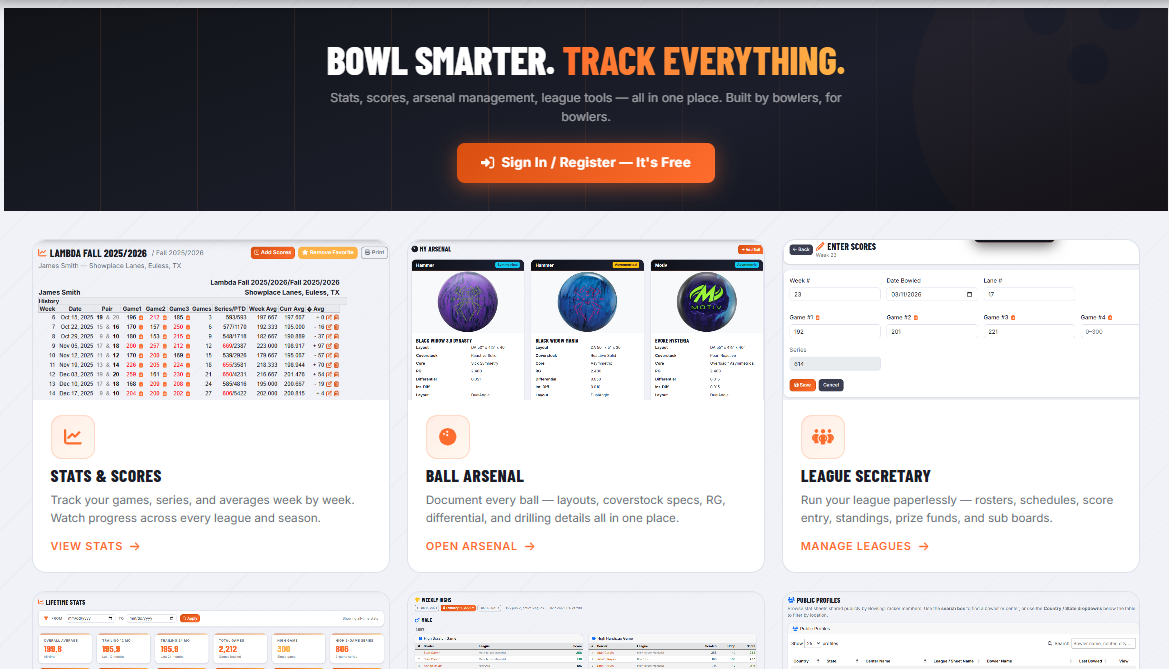
Setting Up Your Profile
After your first login, visit Account → My Profile to fill in your real name and (optionally) your USBC Member ID.
- Click your username in the top-right navigation bar.
- Select My Profile.
- Enter your First Name and Last Name.
- Optionally enter your USBC Member ID.
- Click Save Profile.
Creating a Stat Sheet
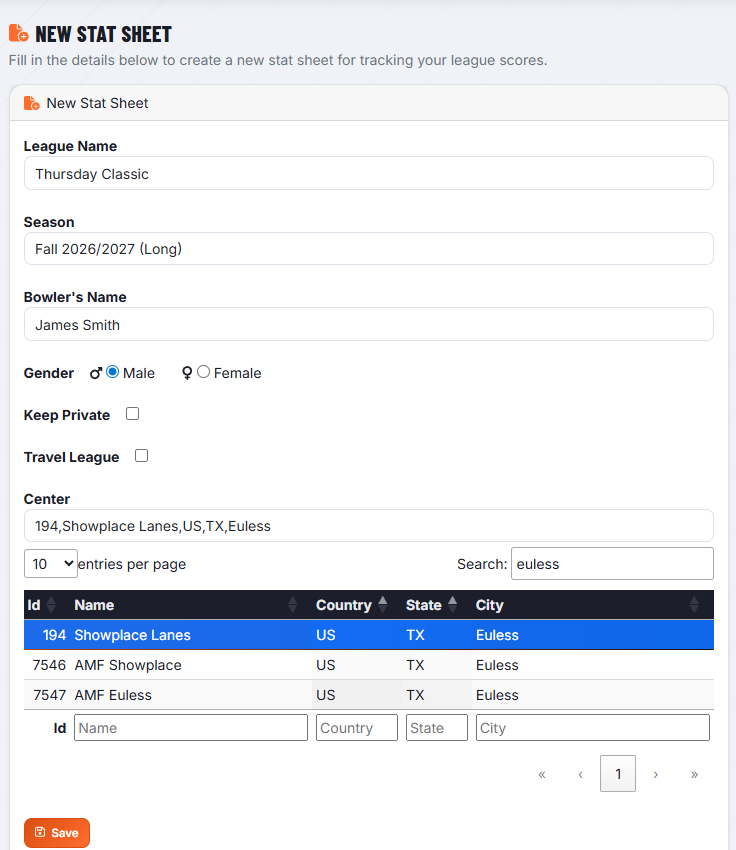
A stat sheet represents one bowler in one league for one season. You can have as many stat sheets as you need — one for each league you bowl in, each season.
- Go to My Tracker → New Stat Sheet in the nav bar.
- Enter the League Name (e.g., Thursday Night Mixed).
- Select the Season from the dropdown (e.g., Fall 2024/2025).
- Enter the Bowler's Name as it appears on the roster.
- Select your Bowling Center.
- Choose Gender (used for separate weekly high rankings).
- Check Keep Private if you do not want this sheet to be publicly visible.
- Click Create.
Managing Stat Sheets
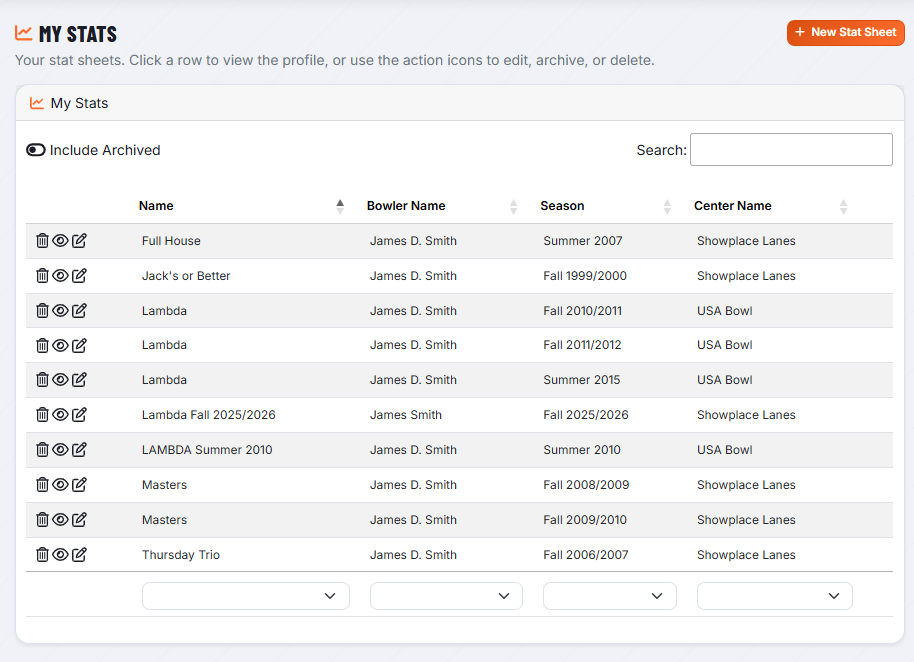
All your stat sheets are listed on the My Tracker → My Stats page. Each row shows the league name, bowler name, season, and center. Use the icons on the left of each row to perform actions:
- Edit — update the league name, season, bowler name, or privacy setting.
- Archive — hide an older season from your default view (it can be restored).
- Restore — bring an archived sheet back to the active list.
- Delete — permanently remove the stat sheet and all its scores.
Click any row to open that profile's full score view.
Public vs. Private Stat Sheets
By default, stat sheets are public — they appear in public profile searches and on the Public Profiles page. Anyone can view the scores, averages, and charts on a public profile without logging in.
Checking Keep Private on a stat sheet makes it visible only to you when you are logged in. It will not appear in search results, the Public Profiles page, or Weekly Highs.
Entering Scores
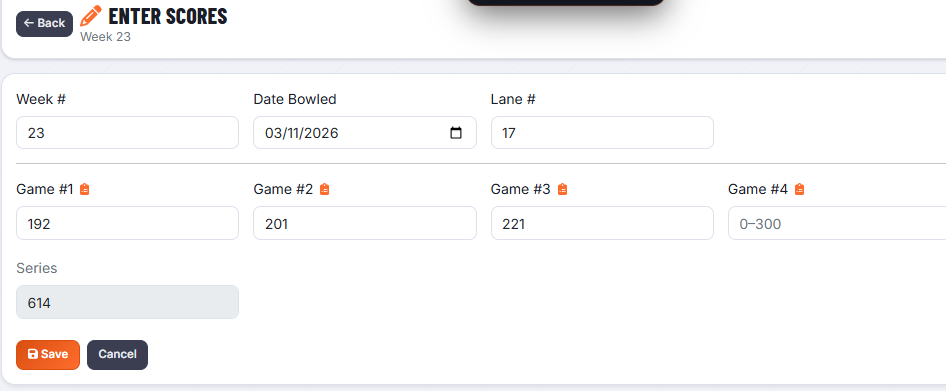
Open a profile from My Stats, then click Add Scores (or the week link you want to edit). The score entry form lets you record every game for a given week.
- On the My Stats page, click the stat sheet you want to update.
- Click Add Scores or click on a week number to edit that week.
- Enter the Date Bowled for the session.
- Enter the Bowling Center name and Lane Pair.
- Enter each game score. Leave a game field blank if you did not bowl that game.
- Click Save.
Week Scorecards
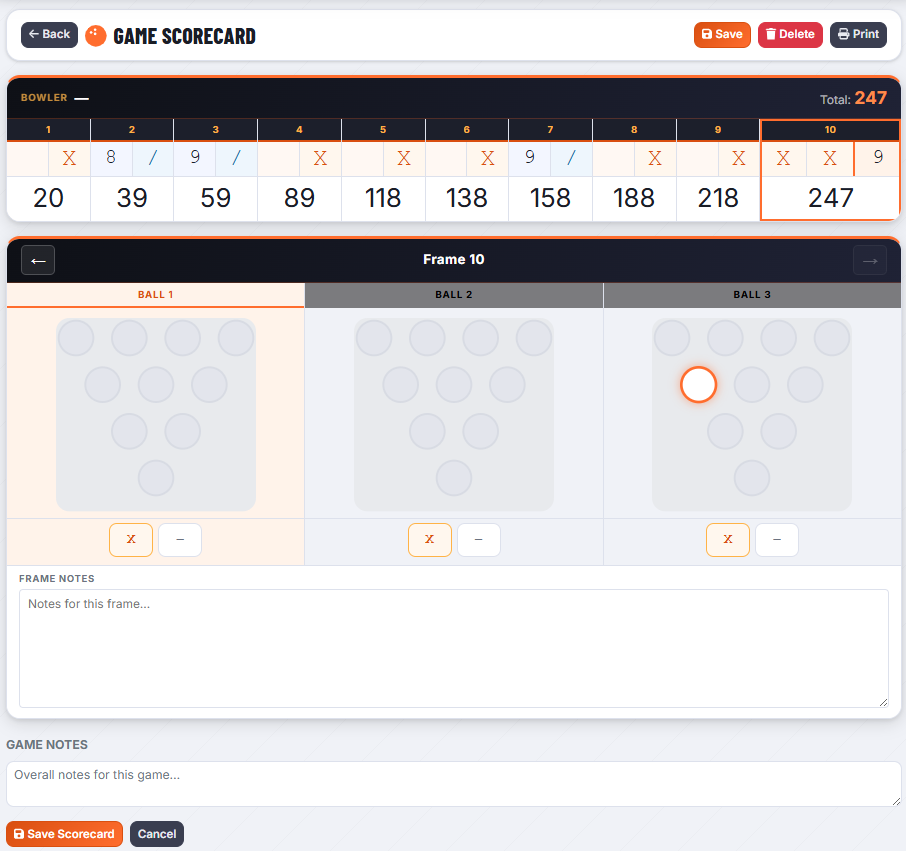
The Week Scorecard view shows a frame-by-frame breakdown of every game for a selected week, including pin diagrams for each delivery. Access it by clicking the Scorecard link on any week row within a profile view.
Scorecards can be printed using the Print button in the top-right corner of the scorecard page.
Editing & Deleting Scores
From a profile's score list, click the edit icon next to any week to update the scores for that session. To remove an entire week's entry, use the delete icon. Leave individual game fields blank to indicate games that were not bowled.
Viewing a Profile
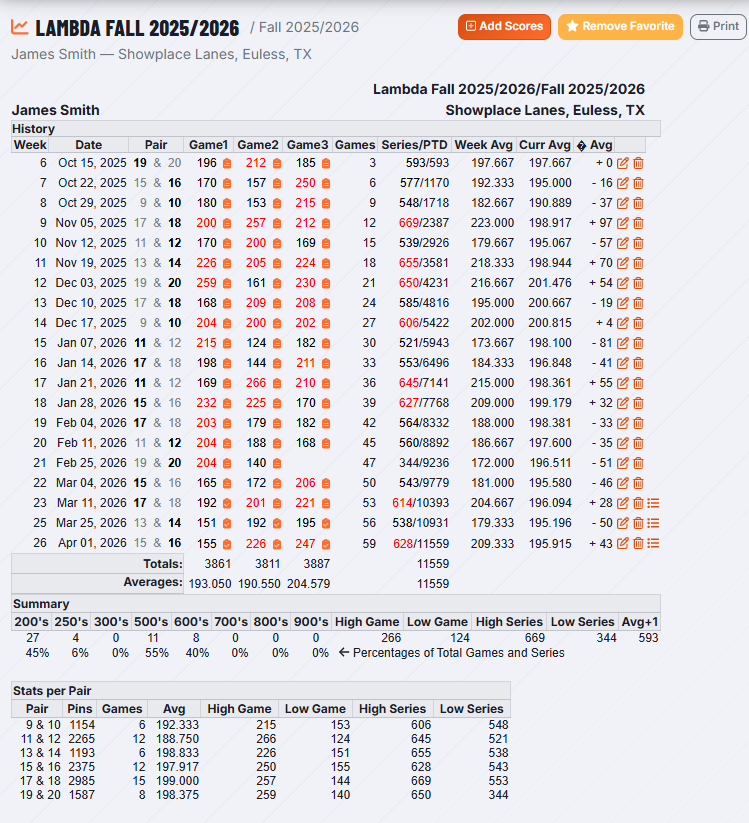
Every public stat sheet has a shareable URL you can send to others. The profile view shows:
- Season overview — high game, high series, current and overall averages.
- Week-by-week score table with game totals and series.
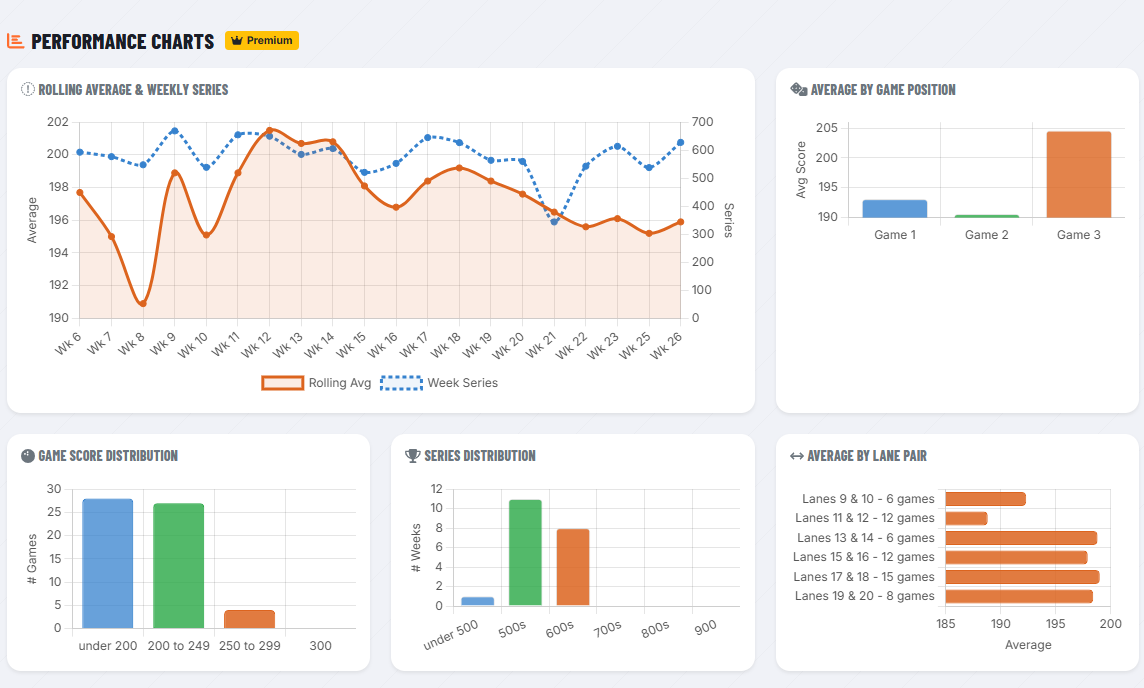
- Performance charts Premium — rolling average, score distribution, and pair stats.
- A link to the full frame-by-frame scorecard for each week.
My Stats
The My Tracker → My Stats page is your home dashboard. It lists all your active stat sheets with quick-action icons. Click any row to jump directly to that profile.
Use the Archive icon on older seasons to keep the list tidy without losing any data. Archived sheets can be restored at any time.
Lifetime Stats Premium
Lifetime Stats aggregates data across all your stat sheets and all seasons, giving you a bird's-eye view of your bowling career. View a sample to see what it looks like.
Available statistics include:
- Total games bowled and total pins.
- Career average, high game, and high series.
- Rolling average trend over time.
- Score distribution chart (sub-200, 200–249, 250–299, 300).
- Series distribution (sub-500, 500+, 600+, 700+, 800+, 900).
- Per-game averages (Game 1 vs. Game 2 vs. Game 3).
- Average by lane pair (to spot patterns on certain pairs).
Use the Date Range filter at the top to narrow results to a specific time period.
Performance Charts Premium
Performance charts are a Premium feature. Within a single stat sheet profile, Premium subscribers see a set of charts beneath the score table:
- Rolling Average — your average as it evolves week by week through the season.
- Series by Week — total pins per week as a bar chart.
- Score Distribution — how many games fell into each range (<200 / 200 / 250 / 300).
- Series Distribution — frequency of each series tier.
- Game Average — your average for game 1, game 2, and game 3 separately.
- Average by Pair — how your average differs across lane pairs bowled.
Arsenal Overview
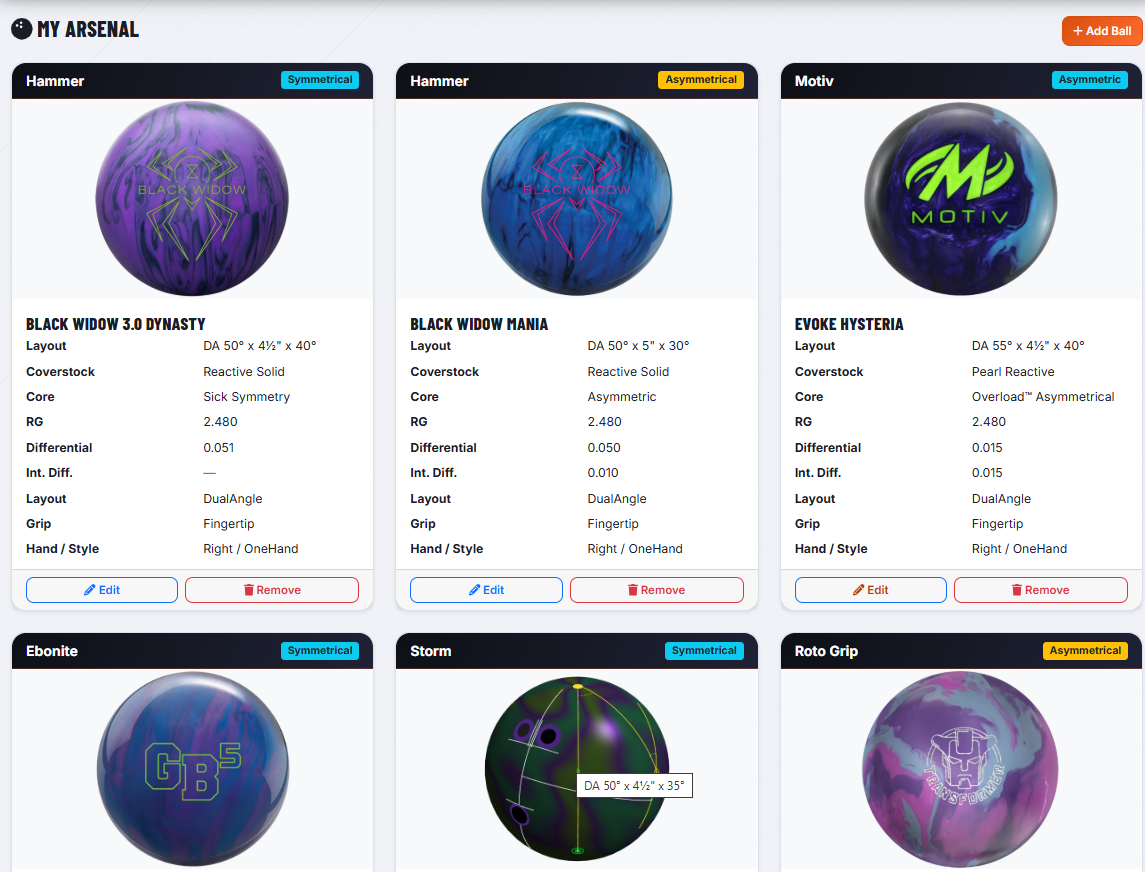
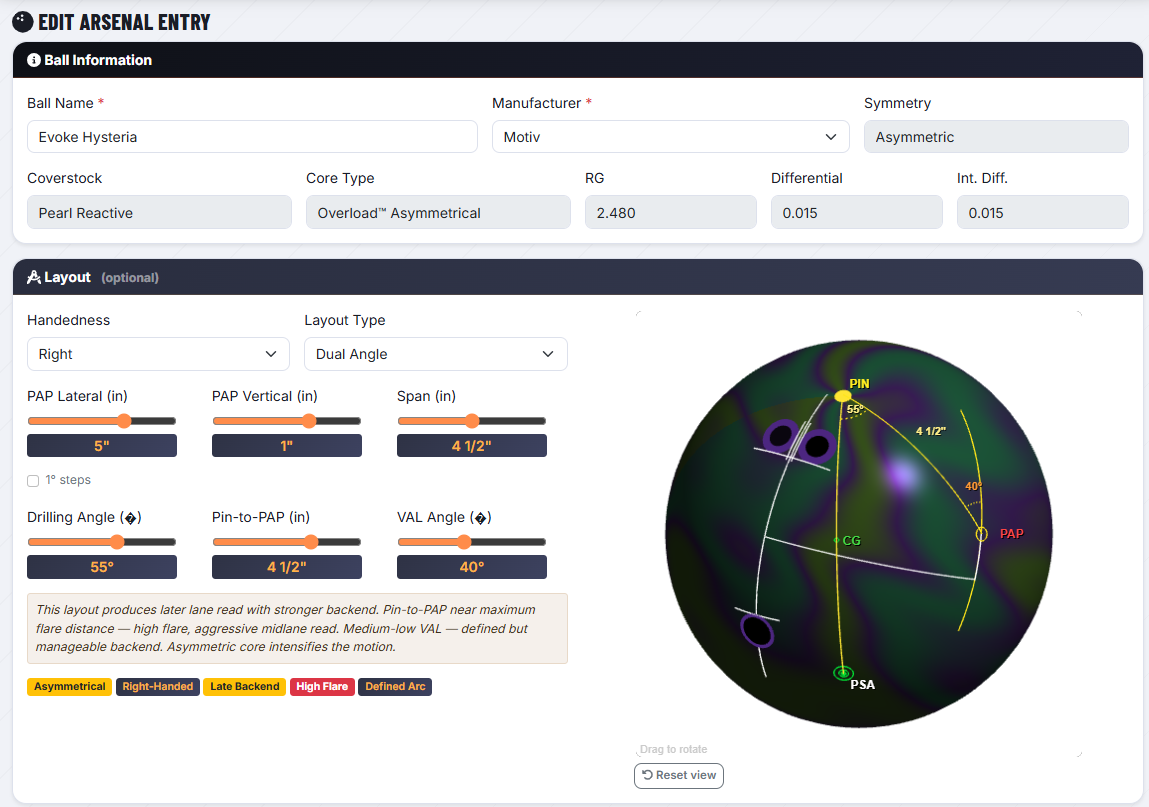
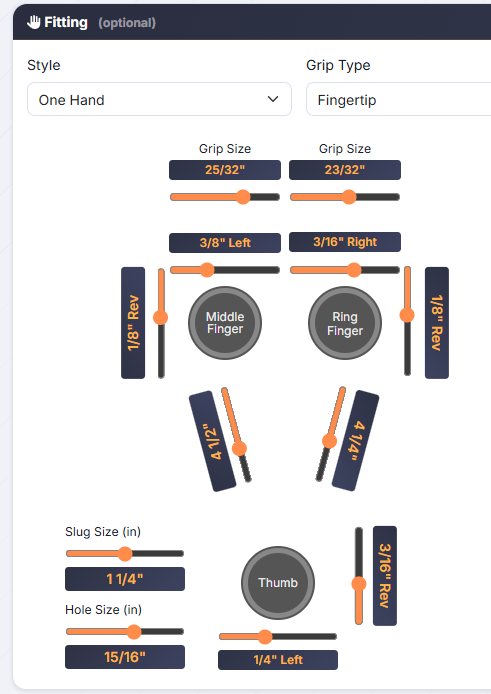
The Arsenal section lets you catalog the bowling balls you own, complete with manufacturer specs (RG, differential, finish, coverstock) and your personal drilling layout for each ball.
Ball specifications are fetched automatically from the internet using the manufacturer and ball name you enter. Some balls may have incomplete data initially; our team fills in gaps over time.
Adding a Ball
- Go to My Tracker → My Arsenal.
- Click the Add Ball button.
- Select the Manufacturer from the list.
- Begin typing the Ball Name; suggestions will appear from the catalog.
- Enter your drilling layout details (see Layout section below).
- Click Save.
Drilling Layouts
BowlingTracker supports the following layout systems:
- Dual Angle — enter the drilling angle, VAL angle, and pin-to-PAP distance. The most widely used layout system among coaches and pro shops.
- VLS (Vector Layout System) — enter the VLS code (e.g., 45-5-30) that specifies the pin position relative to your PAP. A visual diagram is rendered from the values you enter.
Free vs. Premium Arsenal Limits
Free accounts can track 1 ball in the Arsenal. Upgrading to Premium removes this limit and lets you catalog your entire bag.
| Feature | Free | Premium |
|---|---|---|
| Balls in Arsenal | 1 | Unlimited |
| View ball specs & layout diagram |
Public Profiles
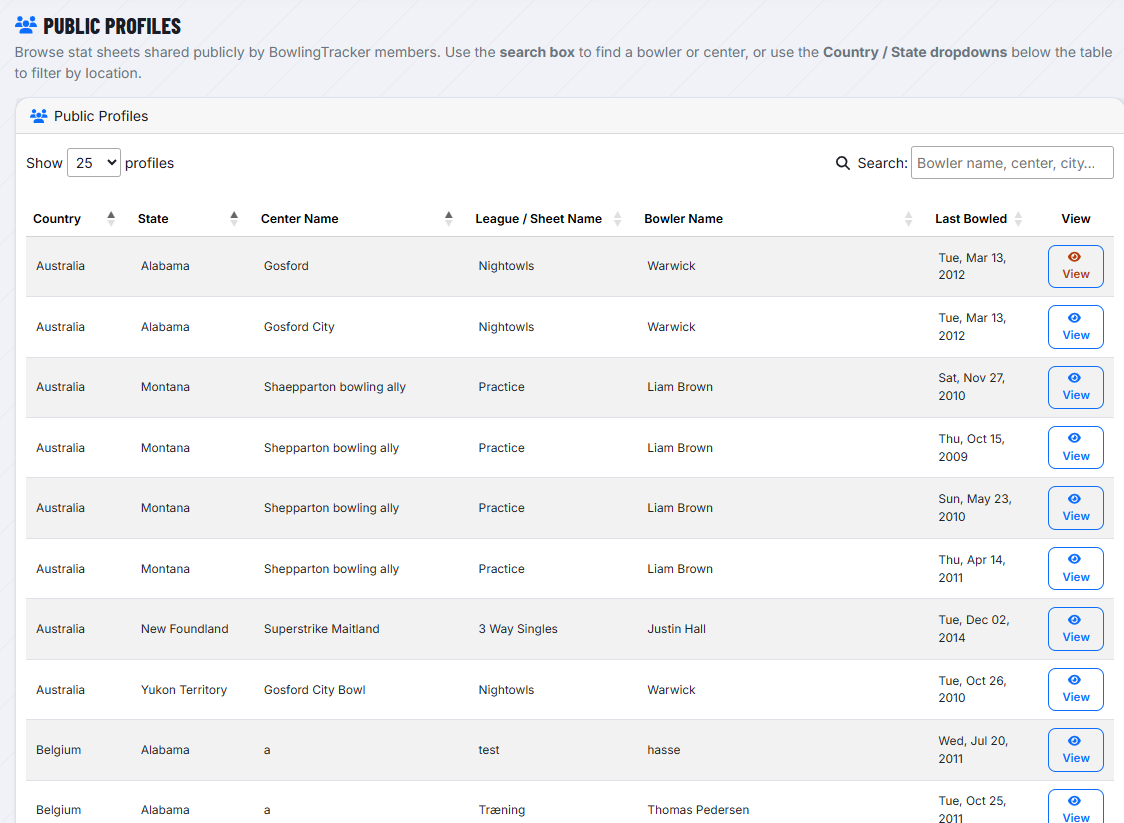
The Public Profiles page lists all non-private stat sheets across the community. Use the search box to find a bowler by name, league, or center. Click any row to open that bowler's full profile.
Public profiles can be viewed by anyone — no login required. You can share the direct URL with teammates, coaches, or friends.
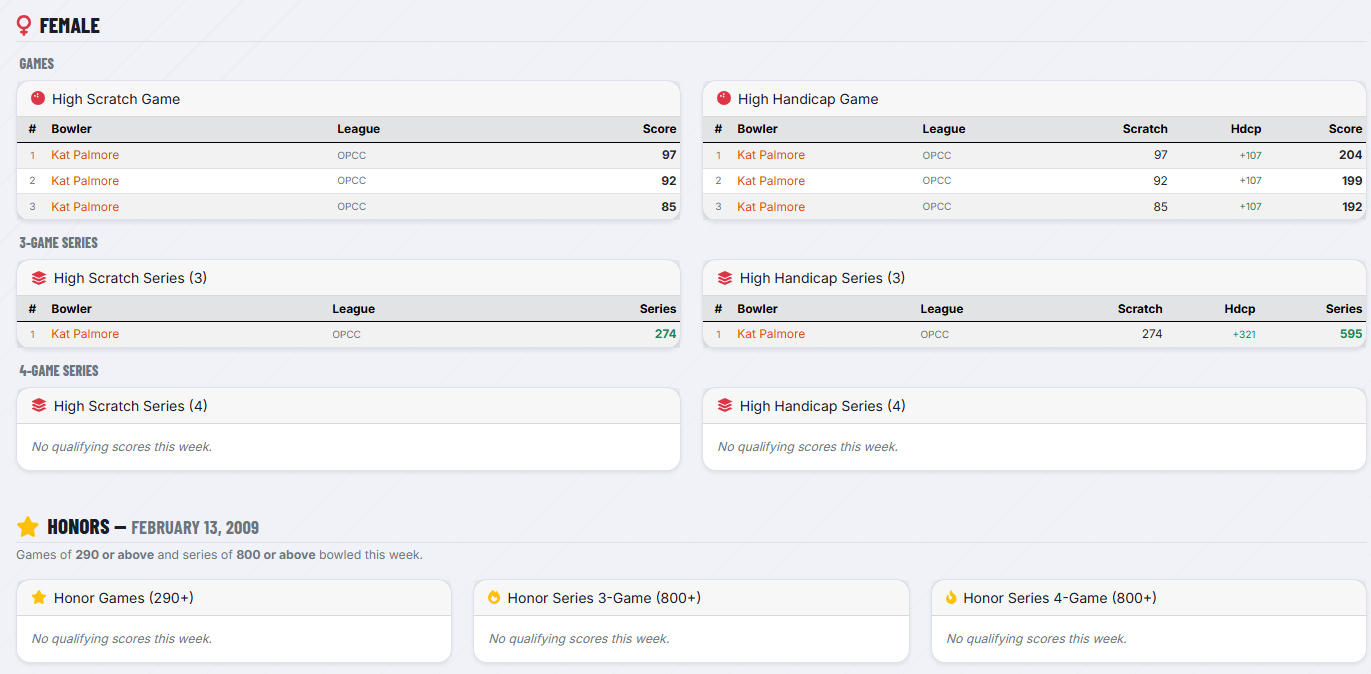
Weekly Highs
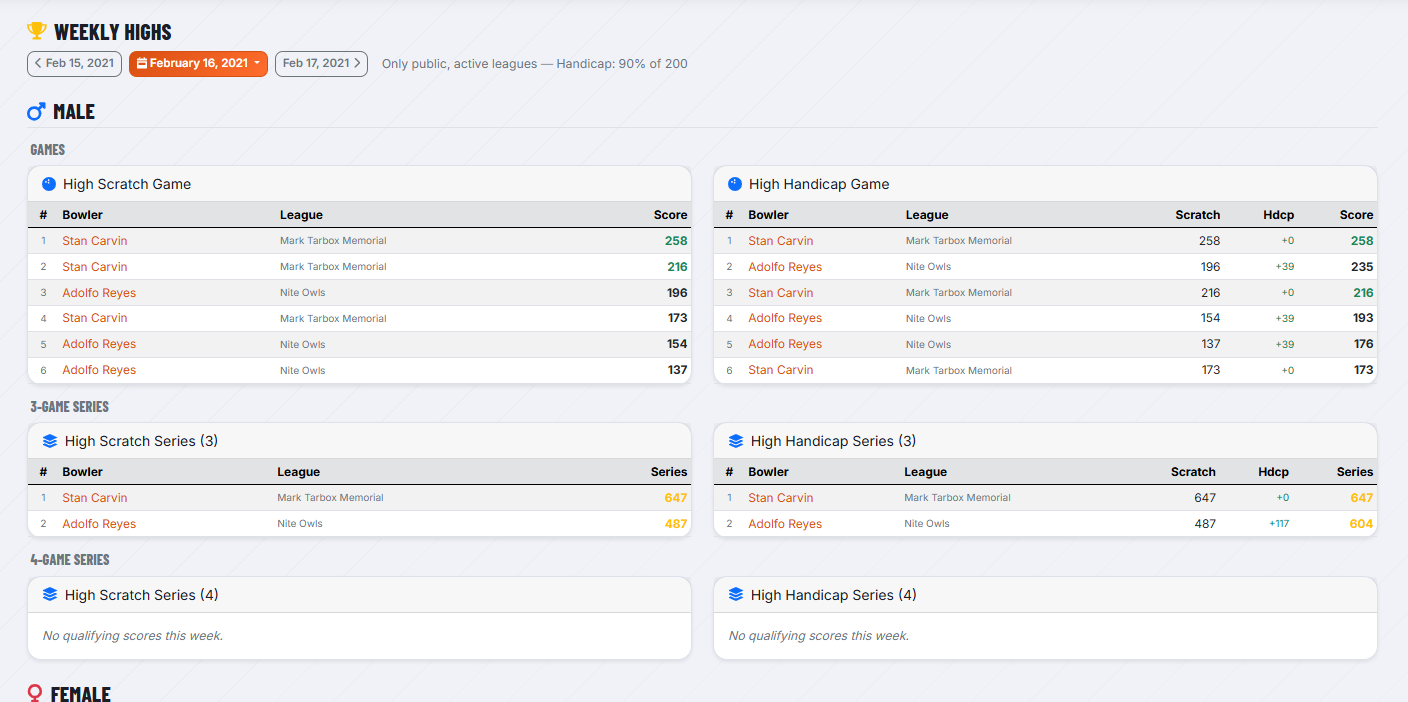
The Weekly Highs page shows the top-scoring bowlers across the entire BowlingTracker community for any given week. Results are broken out by gender and list:
- High Games (top individual game scores)
- High Series (top 3-game and 4-game totals)
- High Averages (best current average for the season)
Use the navigation arrows or the week dropdown to browse previous weeks. Only scores from public stat sheets are included.
Favorites
Save other bowlers' stat sheets to your Favorites list for quick access. Click the star icon on any public profile to add or remove it from your favorites. View all your saved favorites under My Tracker → Favorites.
Premium Features
BowlingTracker Premium unlocks the full feature set for serious bowlers:
| Feature | Free | Premium |
|---|---|---|
| Create stat sheets | ||
| Enter scores & view profiles | ||
| Public profiles & Weekly Highs | ||
| Save favorites | ||
| Arsenal (ball catalog) | 1 ball | Unlimited |
| Performance charts (within a profile) | ||
| Lifetime Stats & career analytics (view sample) | ||
| Priority feature access |
Visit the Premium page for current pricing and to subscribe.
Subscribing to Premium
BowlingTracker Premium is billed through PayPal. You do not need a PayPal account — you can pay by debit or credit card through the PayPal checkout flow.
- Go to Help → Premium.
- Choose a Monthly or Annual plan (annual saves money).
- Click the Subscribe button and complete checkout via PayPal.
- Premium access is activated within seconds of payment confirmation.
Cancelling Your Subscription
You can cancel your Premium subscription at any time from your My Profile page — click the Cancel Subscription button in the subscription section. You can also cancel directly through PayPal:
- Log in to PayPal.
- Go to Settings → Payments → Manage automatic payments.
- Find BowlingTracker and click Cancel.
Switching subscription plans
You can switch between the Monthly and Annual plans at any time via PayPal. The new plan takes effect at the start of your next billing cycle — you will continue on your current plan until then.
My Profile Page
The My Profile page (accessible from the account dropdown in the top-right nav) lets you:
- Update your display name (first and last name).
- Enter or update your USBC Member ID.
- View your current subscription status and plan.
- Cancel or manage your Premium subscription.
USBC Member ID
Your USBC Member ID is the number assigned to you by United States Bowling Congress. You can find it on your USBC membership card or on the USBC website.
SSO / Partner Login
BowlingTracker uses Single Sign-On (SSO) via partner sites. Your BowlingTracker identity is tied to your account on the partner forum or site you used to first log in. This means:
- You never need a separate BowlingTracker password.
- Your forum username becomes your BowlingTracker display name.
If you are a site administrator interested in setting up SSO integration for your forum or league website, see the Integration Guide.
Installing BowlingTracker as an App
BowlingTracker is a Progressive Web App (PWA), which means you can install it on your device and use it like a native app — no app store required.
iOS (Safari)
- Open BowlingTracker in Safari.
- Tap the Share button at the bottom of the screen.
- Scroll down and tap Add to Home Screen.
- Tap Add to confirm.
Android (Chrome)
- Open BowlingTracker in Chrome.
- Tap the Menu button (three dots, top right).
- Tap Add to Home Screen or Install App.
- Tap Install to confirm.
Desktop (Chrome)
- Open BowlingTracker in Chrome.
- Click the Menu button (three dots, top right).
- Select Cast, Save and Share → Install as app…
- Click Install to confirm.
Desktop (Edge)
- Open BowlingTracker in Edge.
- Click the Menu button (three dots, top right).
- Select More tools → Apps → Install this site as an app.
- Click Install to confirm.
Once installed, BowlingTracker launches in its own window without browser chrome — just like a native app.
Support Tickets
If you run into a problem or have a question that isn't answered here, you can open a support ticket directly from BowlingTracker.
Opening a ticket
- Click Support in the page footer (you must be logged in).
- Click Open New Ticket.
- Enter a short subject and a description of your issue, then click Submit.
Back-and-forth replies
Once a ticket is open, both you and the support team can send messages. Each reply appears in chronological order in the ticket thread — your messages appear on the right, support replies on the left.
Email notifications
When support replies to your ticket, you'll receive an email notification at the contact email address on your account. Make sure your contact email is up to date on your profile page.
Ticket statuses
- Open — ticket received, awaiting support response.
- In Progress — actively being worked on.
- Resolved — support believes the issue is fixed. Replying will reopen it automatically.
- Closed — no further action. Open a new ticket if needed.